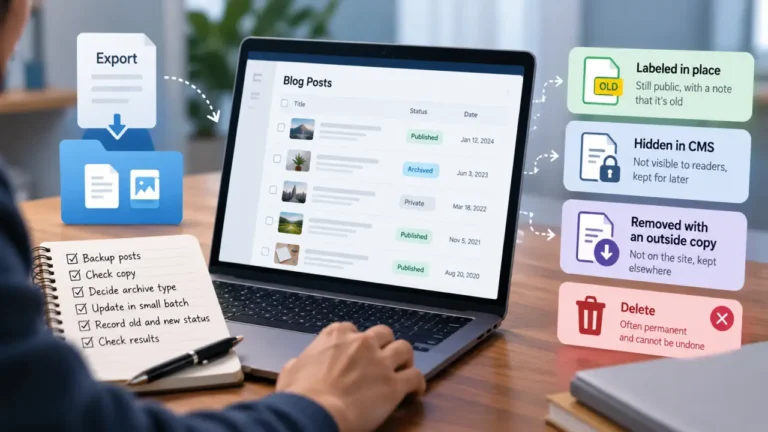


How to unpublish a post safely: save a complete copy first, open it to confirm it works, and note how you would restore the post. Then switch it from Published back to Draft (or Private, if a few people still need it) rather than deleting it. Check the old address in a logged-out browser, decide what that URL should do now, and fix links pointing to it. Republishing the draft is your way back. Deleting comes later, on purpose, if at all.
That order matters because “this needs to come down right now” is almost always said under pressure. A client spotted a wrong figure, a source withdrew a quote, an embargo was missed, or someone’s personal details slipped into a screenshot. Pressure is when people reach for Delete, because it feels the most final. It is also the one action that can cost you the post, its comments and its history in a single click, which is why the copy and the way back come before any button in this guide.
The sequence below works on any CMS. WordPress, Wix and Squarespace appear as examples, and the vendor behavior quoted here was checked against each vendor’s own help pages on September 24, 2026. Menus move between releases, so confirm the exact label on your platform before you rely on it.
Before you touch anything: a copy you have opened, and a way back
A backup you have not opened is a hope, not a backup. Before changing the post’s status, capture everything that would be hard to rebuild:
- The title and body text, as they appear in the editor, not only as they render on the page
- The exact URL, the original publish date and the author
- Categories, tags, the featured image and any inline images, saved as files rather than as links back to your own site
- The SEO title and meta description, if your platform stores them separately
- The comments, if they are part of the record
The comments point is not theoretical. Wix’s help page on unpublishing and deleting blog posts (read September 24, 2026) says that when you unpublish a post, “the views, likes and comments associated with the post are no longer accessible.” If a comment thread matters, copy it first.
Use your platform’s export where one exists. The approach in exporting a clean copy of your content from a CMS works for a single post as well as a whole site. Then open the copy on a different device and check that the text and images are really there.
Last, write the rollback plan in one line before you start. For example: “To restore: remove any redirect, republish the draft at the same URL, re-add the links listed in the takedown note.” If you cannot write that line yet, you are not ready to unpublish.
Unpublish, private, delete or redirect: four different actions
Most platforms offer several ways to take a post down, and they are not interchangeable. The differences come down to what a visitor sees at the old address and how easily you can reverse it.
| Action | What a visitor sees at the old URL | How to undo it | Use it when |
|---|---|---|---|
| Revert to draft | Usually a not-found page | Republish the draft | The post needs fixing or waiting, then returning |
| Private or password-protected | A login or password prompt, or a not-found page, depending on the platform | Switch it back to public | A client, editor or legal adviser still needs to read it |
| Delete (to trash) | A not-found page | Restore from trash, if it has not been emptied | The post should never return and a verified copy exists |
| Redirect to another page | The page you chose instead | Remove the redirect | A newer or better post replaces it |
Draft is the default choice because it is the only option that keeps the post intact inside your CMS while hiding it from the public. Squarespace’s guide to deleting pages or blog posts (updated March 6, 2026, read September 24, 2026) makes the same point in one sentence: if you think you will need the post later, unpublish it by setting it back to a draft instead of deleting it.
Pick the action by the reason it is coming down
The reason for the takedown decides the method, not the other way around.
- A factual error or a wrong name. If the fix takes minutes, correcting the post in place with a visible note often serves readers better than removing it. If the fix will take longer, revert to draft, fix it, and republish at the same address.
- A legal, privacy or safety complaint. Revert to draft straight away, keep the copy somewhere with restricted access, and hand the question of what happens next to whoever advises you on legal matters. Do not delete anything yet; you may need the record.
- An embargo or timing mistake. Revert to draft, then republish at the agreed time and check that the date shows what you intended.
- Outdated or replaced content. Point the old address at the newer post with a redirect, then unpublish or delete the old one.
- A client asked for it to come down. Draft first, confirm the request in writing, then decide on deletion together.
Notice that deletion is never the first move in that list. Every reason above is served at least as well by a draft, and a draft leaves every later option open.
How to unpublish a post, step by step
This is the platform-agnostic sequence. It assumes the copy and the one-line rollback plan already exist.
- Confirm who decides. A takedown should have one approver, ideally the same person who gives final sign-off before publishing. If your team has not named one, the one-final-approver rule is the place to start.
- Change the status, not the content. Find the post’s status control and set it back to draft. In WordPress that is the option to switch a published post to draft. Wix’s help page describes a Revert to draft option in the post’s More actions menu. Squarespace has you set the post back to a draft. Save the change.
- Check from the outside. Open the old URL in a private browser window where you are not logged in. Logged-in editors can often still see drafts, so your own view proves nothing. If the post still loads for a logged-out visitor, your site or a content delivery network may be serving a cached copy; clear it through your host or caching tool and check again.
- Decide what the address does now. A plain not-found page is honest and fine for a short takedown. For a permanent retirement, send the address to the closest useful page. If several posts are going at once, list them in a simple redirect map instead of improvising one redirect at a time.
- Fix the links that point to it. Search your own site for the old URL and update or remove those links, because each one now leads to a dead end. The discipline from fixing internal links without making things worse applies here too: work from a list and change links deliberately.
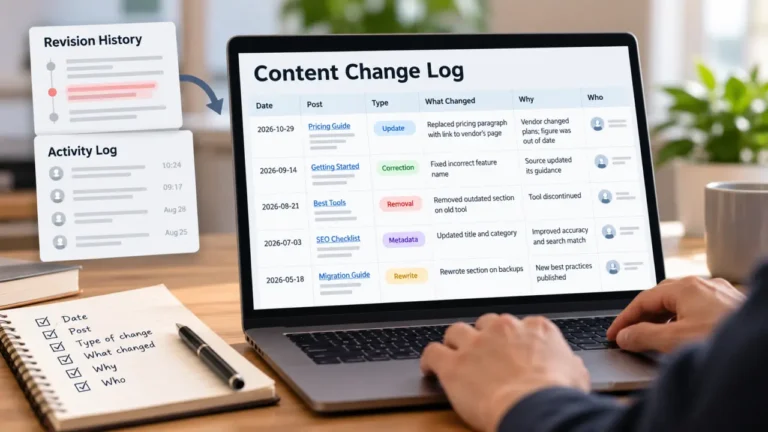
- Write the takedown note. Date, reason, approver, where the copy lives, what the URL does now, which links you changed, and a review date. That note is what makes the rollback below possible.
- Tell the people who need to know. The writer, whoever runs social and newsletters, and the client if there is one.
Where the post keeps living after you unpublish it
Unpublishing controls one copy: the page on your site. Other copies may already exist, and none of them change when you change a status.
| Copy | Does unpublishing remove it? | What you can do |
|---|---|---|
| Newsletter emails already sent | No. A delivered email stays in the inbox | Send a follow-up if the error matters |
| RSS readers and aggregators | Often not; many keep what they already fetched | Record it in the takedown note |
| Social posts and link previews | No. The share and its preview card stay up | Edit or delete the posts you control and cancel scheduled shares |
| Cross-posted copies on other platforms | No | Unpublish each copy on its own platform |
| Search results | Not immediately; an old listing can linger for a while | For sensitive content, use the search engine’s own removal request process |
| Screenshots and web archives | No | Plan your response rather than the removal |
This is the part most how-to pages skip, and it is where takedowns go wrong. A team unpublishes the post, sees the not-found page, and considers the job done, while a scheduled social share goes out the next morning and sends followers to a dead link. If your platform can send posts as newsletters, as Ghost can, any email that already went out stays in subscribers’ inboxes; switching the web version to draft does not touch it.
Bringing it back: the rollback, in order
Republishing is usually one click. The order around that click is what keeps it clean.
- Remove any redirect first. If you pointed the old address somewhere else, the redirect can keep sending visitors away even after the post is live again.
- Check the URL before republishing. Confirm the slug still matches the one in your takedown note, especially if anyone edited the title while the post sat in draft.
- Decide the date. A republished post may keep its original date or take today’s, depending on the platform and how the date was set. Choose which you want and set it on purpose.
- Restore the links you removed, using the list in the takedown note.
- Test from a logged-out browser, including the images.
If the post was deleted rather than unpublished, the way back has a deadline. Squarespace keeps deleted blog posts in Deleted Posts for 30 days, according to the help page cited above. Wix lets you restore a trashed post to draft, but its help page is explicit that permanently deleting a post removes it from the site and the trash “with no way to recover it.” Your own saved copy is the only rollback plan that does not expire.
When deleting is the right call
Deletion has a place: test posts, true duplicates, content that must never return, and anything your legal adviser tells you to remove rather than hide. Delete when three things are true. A verified copy exists outside the CMS, or your adviser has told you what to keep. The old address has a decided fate, either a redirect or a deliberate not-found page. And enough time has passed that nobody is going to ask for the post back.
For most small teams that means unpublishing today and deleting at the review date in the takedown note, not in the same session. The gap costs nothing, and it turns a panicked click into a decision somebody made with the facts in front of them.
Frequently asked questions
Does unpublishing a post delete it?
No. On most platforms, unpublishing turns the post back into a draft that stays in your CMS and can be republished. Wix’s help page, for example, describes unpublishing as reverting the post to draft so site visitors cannot view it. Deleting is a separate action, and many platforms send deleted posts to a trash or deleted-items area first.
What happens to the URL when I unpublish a post?
Visitors to the old address usually get a not-found page unless you set up a redirect. Links from your own site, other sites and social posts still point there, so fix the links you control and decide whether the address should redirect somewhere useful.
Will unpublishing a post remove it from Google?
Not instantly. Search results can keep showing the old listing until the search engine revisits the page and finds it gone. If the content is sensitive, check the search engine’s own help pages for its removal request process rather than waiting.
Can I unpublish a post temporarily and republish it later?
Yes, that is what draft status is for. Before republishing, remove any redirect you added, confirm the URL has not changed, and check whether the post kept its original date.
Should I unpublish or delete a post I no longer want?
Unpublish first and delete later, if at all. A draft costs nothing to keep and comes back in one click. A permanently deleted post cannot be recovered on Wix, and Squarespace keeps deleted posts for 30 days according to its help page.