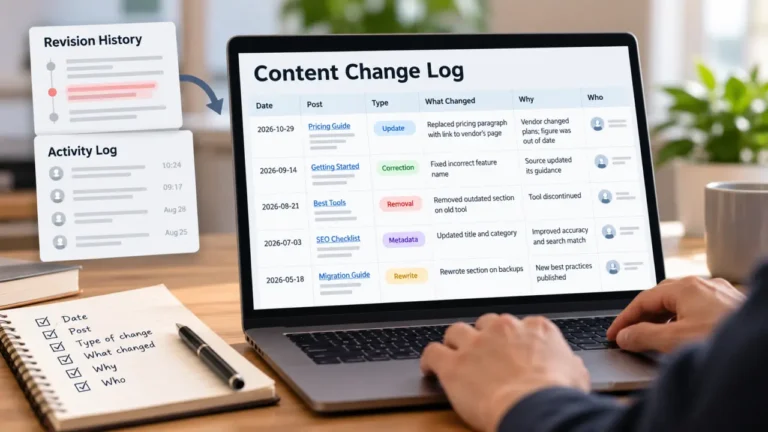


To get back a draft you overwrote, stop editing and copy what is on screen now into a separate document; that copy is your way back if the restore goes wrong. Then open the post’s revision or history panel, compare the saved versions, and restore the right one. Content version history (CMS revisions, post history or document history, depending on the platform) usually keeps a copy each time you save, but some platforms cap versions, expire old history or skip whole content types.
The moment usually sounds like “I saved over three hours of work.” Someone pasted an old draft on top of the new one, or a second tab saved an earlier version, or an edit went into the wrong post. The good news is that most platforms quietly kept something. The bad news is that the next few clicks can destroy it, because on some platforms every new save pushes an older version out.
This guide covers what to do first, where to look and in what order, what version history actually saves on several platforms, and the gaps nobody mentions until you fall into one. Vendor documentation quoted here was read on September 24, 2026, and the WordPress details reflect its 7.0 revisions screen. Version history features change between releases, so treat the platform specifics as a snapshot from that date.
Before anything else: protect what is left
Before you restore anything, make sure the situation cannot get worse.
- Stop typing and do not save. On WordPress, according to its Revisions documentation (updated May 1, 2026, read September 24, 2026), there is only ever one autosave per user for any given post, and “new autosaves overwrite old autosaves.” On a site set to keep a limited number of revisions, the same page notes that old revisions are deleted automatically when the post is updated again. More saving can mean less history.
- Close every other tab or device with the same post open. Another open copy can save over the post again while you work.
- Copy the current state out of the CMS. Select all in the editor, paste it into a plain document, and save it with the post name and the time. Reopen that file and confirm the text is really there. This is your verified backup.
- Note the details a restore may not touch: title, URL, tags, categories, featured image and any SEO fields.
- Write your rollback line. For example: “If the restore is wrong, paste the saved copy back and re-check the tags and image.” If you cannot say how you would undo the restore, do not start it.
Only now open the history panel.
Where to look, in order
The CMS revision panel is the obvious first stop, but it is not the only place a lost draft survives. Work down this list and stop at the first place that has what you need.
| Where to look | What it may hold | When it helps |
|---|---|---|
| The CMS revision or history panel | Versions saved by the platform | Almost always the first check |
| An autosave or backup prompt in the editor | Work that was typed but never saved | After a crash, a closed tab or a lost connection |
| The document the draft started in | That tool’s own version history | When the draft was written elsewhere and pasted in |
| A sent newsletter or email copy | The version that was emailed | When the post went out by email before the damage |
| A full-site backup | Everything, as of the backup time | Last resort only; see the warning below |
The autosave prompt is easy to dismiss by accident. WordPress’s Revisions page describes it plainly: if your power goes out, your browser crashes or you lose your connection, WordPress will warn you when you return to the post that it has a backup, with a link to restore it. Read that message before clicking anything else.
The full-site backup row carries a warning. Restoring a whole site to recover one post rolls back every other change made since that backup, including other people’s work. Ask whoever runs your hosting whether a single post can be pulled out of the backup instead. If nobody knows, that gap belongs in the same conversation as a tested backup and rollback plan, before the next emergency rather than during it.
What content version history in a CMS actually saves
Every platform answers three questions differently: when a version is created, which fields it includes, and how long it is kept. The answers below come from each vendor’s own documentation, read on September 24, 2026.
| Platform | When a version is saved | Known limits, per the vendor |
|---|---|---|
| WordPress (7.0) | Each saved draft or published update, plus one autosave per user | Keeps every revision by default, but a site can be set to keep fewer; tracks title, author, content and excerpt by default |
| Ghost | Multiple versions, stored in the background as you edit | Its help page gives no count or retention period |
| Sanity | Changes are kept as document revisions | History retention depends on plan |
| ButterCMS | Only versions that were published | Version history for blog posts is listed as unavailable |
Three details from that table deserve a second look.
Fields. WordPress’s documentation says that by default it tracks changes to the title, author, content and excerpt. Tags, categories and the featured image are not on that list, so a restored revision can bring back your words and leave the wrong image in place.
Drafts that never published. ButterCMS’s knowledge base (read September 24, 2026) says a version must have been published to appear in history, and that viewing version history for blog posts is “currently unavailable.” On a platform that works this way, the three hours of unpublished drafting in the opening example may have no history at all.
Retention. Sanity’s History experience documentation (read September 24, 2026) lists retention of 3 days on its Free plan, 90 days on Growth and 365 days on Enterprise, with revisions older than the cutoff truncated into one item. The same page says upgrading later does not bring back history that has already been deleted.
What version history does not cover
This is the part vendor documentation rarely puts in one place. Version history is a record of what the CMS saved, and several kinds of loss fall outside it.
- Work that never reached the CMS. Text typed and lost before any save exists only in an autosave or a browser backup, if at all.
- Fields outside the tracked set. Tags, categories, images, custom fields and SEO settings may not be versioned with the body text.
- Media files. Replacing an image in the media library is usually a separate action from editing the post, with its own rules or none.
- Deleted posts. Trash and restore is a different mechanism from version history, often with a time limit of its own.
- History past the retention window. Once a platform truncates old revisions, there is nothing left to restore.
None of this makes version history less useful. It means the protection is narrower than the word “history” suggests, and the gaps are where the painful losses happen.
Restoring without making it worse
With the current state copied out and verified, restore carefully.
- Compare before you choose. Use the platform’s compare view rather than guessing from timestamps. WordPress 7.0’s revisions screen, for example, marks inserted content in green, deleted content in red and changed content in yellow.
- Pick by content, not by time. The newest version is not always the right one, especially when an autosave sits between two manual saves.
- Know what restoring does to a live post. On some setups a restore changes the published page immediately; on others it creates changes you still have to publish. If you cannot tell, try it on a throwaway post first.
- Restore, then re-check everything outside the body. Title, URL, tags, featured image and SEO fields, against the notes you made before starting.
- Record what happened. One line in your team’s log: what was lost, what was restored, from where.
Run this test before you need it
The worst time to learn how your platform’s history works is the day you need it. A short test on a throwaway post answers the important questions.
Create a test post. Save it three times with an obvious marker in each version: “Version A,” “Version B,” “Version C.” Between saves, change a tag and swap the featured image. Then restore Version A and write down what came back: the text, the tag, the image, or only some of them. Check whether the Version C state is still listed as its own entry after the restore. Finally, look up your plan’s retention limit in the vendor’s documentation.
The answers belong on the list of questions in choosing a CMS for a content team, next to whether writers can publish without help. Version history is easy to assume and expensive to discover.
Two habits reduce how often you need any of this. Decide where a draft lives at each stage, so nobody pastes an old copy over a new one; the stages every publishing process has is a useful way to make that decision explicit. And keep a periodic export outside the platform, using the approach in exporting your content from a CMS, so the history panel is never your only copy.
Frequently asked questions
Does every CMS have content version history?
No, and coverage varies even where it exists. WordPress and Ghost both document built-in version history for posts, while ButterCMS’s knowledge base says viewing version history for blog posts is currently unavailable. Check your own platform’s documentation rather than assuming.
How long does a CMS keep old versions?
It depends on the platform, and sometimes on the plan. WordPress keeps every revision by default unless the site is set to keep fewer. Sanity’s documentation lists 3, 90 and 365 days of history retention across its Free, Growth and Enterprise plans.
Can I recover a draft I never saved?
Sometimes. Some editors keep an autosave or a browser backup of unsaved work and offer to restore it when you return to the post. If neither exists and the text was never saved or pasted from another document, it is usually gone.
Does restoring an old version delete the newer one?
It depends on the platform. Copy the current text into a separate document before restoring, then check afterward whether the pre-restore state still appears in the history list.
Does version history include images and tags?
Often not. WordPress’s documentation says revisions track the title, author, content and excerpt by default, so check tags, categories and the featured image by hand after any restore.