

To archive old blog posts safely, first export a copy of every post you plan to touch and confirm you can open it, then decide which kind of archive you mean: still public but labeled as old, hidden from readers but kept in your CMS, or removed from the site with a copy stored elsewhere. Change a small batch, record each post’s old status, new status and URL in an archive log, and check the result before doing more. The log and the copy are your way back if anything goes wrong.
“Archive” sounds like one action, but on most platforms there is no single archive button. What people mean by it ranges from adding a note that says “this post is from 2019” to taking the post off the site entirely. Each choice changes different things for readers, for search engines and for your own team, and some are much harder to undo than others.
This guide is platform agnostic. It uses WordPress and Ghost as examples because their documentation is public, but the same logic applies to Webflow, Squarespace, a headless CMS or a Git-based site. Platform details were checked against vendor documentation on September 25, 2026.
Before you change anything: backup and rollback
Archiving changes live content. Done carelessly, it can make posts disappear from your site, break links from other pages and, on some platforms, remove content permanently. So before any archiving step:
- Export a copy of every post you plan to archive. Use your platform’s export, or save each post’s content, images and metadata somewhere outside the CMS. Our guide on how to export content from a CMS covers what a full export should include.
- Open the copy and check it. A backup you have not opened is a hope, not a backup. Confirm the text, images and dates are actually there.
- Write down the rollback plan. For each post: what its status was, what its URL was, and what you will do to put it back. If the plan is “restore from the export,” make sure you know how that restore works on your platform.
- Start with a small batch. Five or ten posts, not the whole backlog. Check them, then continue.
If your wider site backup routine is not in place, sort that out first. The steps in the backup and rollback plan we recommend before a CMS migration apply just as well here.
Do not use delete as a form of archiving. On some platforms deletion cannot be reversed. Ghost’s publishing and scheduling help page (read September 25, 2026) states: “Deleting posts is permanent, once deleted it cannot be recovered.” Other platforms have a trash folder, but trash is often emptied automatically or by someone else. If you want to keep it, do not delete it.
Three kinds of archive, and what each one changes
Pick the kind first, because it decides everything else.
| Archive type | Readers see | URL | Your team keeps | Easy to undo? |
|---|---|---|---|---|
| Labeled in place | The post, with a note that it is old or no longer maintained | Unchanged | Everything | Yes: remove the note |
| Hidden, kept in the CMS | Nothing; the page is gone for them | Stops working unless redirected | The post, in draft or private status | Usually: change the status back |
| Removed, kept outside the CMS | Nothing | Stops working unless redirected | The exported copy only | Harder: you must re-import or rebuild |
Labeled in place is the gentlest option. It suits posts that are still accurate in parts but describe an old version of something, a past event, or a service you no longer offer. Readers who arrive from an old link still get the page, plus context.
Hidden in the CMS suits posts you do not want readers to find but may want again, such as seasonal content or pieces waiting for a rewrite. The mechanism varies. In WordPress, one option is the Private status, which its Post Status documentation (last updated January 13, 2023, read September 25, 2026) describes as “viewable only to WordPress users at Administrator level.” Other platforms use draft status, a hidden collection or a visibility setting. Check what your platform’s option actually does before relying on it.
Removed with an outside copy suits content you are confident you will not publish again but want to keep for records, legal reasons or reference.
The URL decision is separate, and it matters
The moment a post is hidden or removed, its address stops showing that page. Anyone following an old link, from another site, a newsletter, a social post or your own articles, reaches an error page unless you do something about it.
What to do with each old URL, whether to redirect it and where to, is a search and site-structure decision, and it deserves its own careful review rather than a quick guess during cleanup. What belongs in the archive process is making sure the decision gets made and recorded. Our guide to building a redirect map before a CMS migration shows a simple format for listing old and new addresses that works just as well for archived posts.
Also check your own site. Search your posts for links to anything you are archiving and update or remove them, so readers do not hit dead ends from inside your own content.
Moving a post into a different section or collection can change its URL too, even if the post stays public. If your platform builds addresses from the section name, test with one post before moving more.
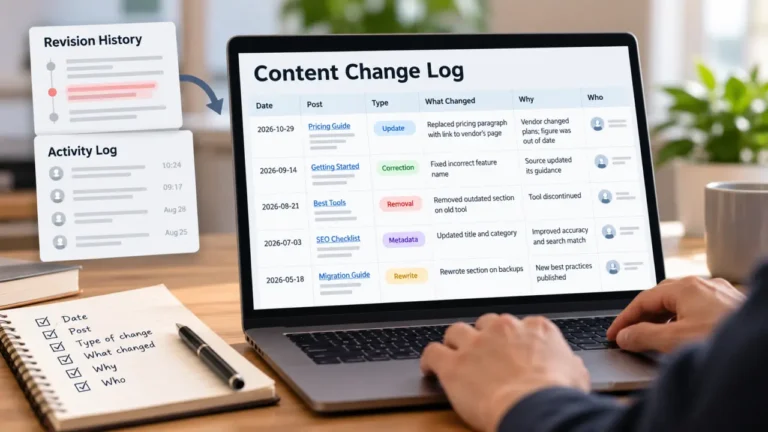
Keep an archive log
Every archived post should have a row in a simple log. A spreadsheet is enough:
| Field | Example of what to record |
|---|---|
| Post title | The title at the time of archiving |
| Original URL | The full address it had |
| Previous status | Published |
| New state | Labeled, hidden or removed |
| Reason | Out of date, event over, service discontinued |
| Where the copy is | The export file and its location |
| URL outcome | Redirected, left as is, or pending decision |
| Date and who did it | So there is someone to ask later |
The log does three jobs. It tells you what to restore if something goes wrong. It stops the same post being “rediscovered” and debated again next year. And it tells a new team member why content disappeared, instead of leaving them to guess.
A safe sequence to archive old blog posts
Once the backup is checked and the archive type is chosen, the process for each batch is:
- List the batch in the archive log with each post’s current status and URL.
- Confirm the export for each post in the batch.
- Find internal links pointing at these posts and note them.
- Make the change on the platform, one batch at a time.
- Check the result by visiting each old URL while logged out, in a private browser window, to see what a reader sees.
- Record the URL outcome for each post, or mark it pending if that decision is still open.
- Update internal links that now point to archived content.
- Wait a few days before the next batch, and watch for reports of broken pages.
If step 5 shows something you did not expect, stop and restore that batch from the log before going further.
How to bring an archived post back
Plan the reverse path before you need it. For each archive type:
- Labeled in place: remove the label or update the post.
- Hidden in the CMS: change the status back, then check the URL still works and any redirect you added is removed, otherwise the redirect may send readers away from the restored page.
- Removed: re-import from the export or rebuild the post, then check images, dates and author details. Metadata such as dates and authors is often the first thing lost in a round trip, as our guide to the CMS migration metadata gap explains.
Update the archive log whenever a post comes back, so the record stays accurate.
FAQ
What is the safest way to archive old blog posts?
Export and check a copy first, then choose the least drastic option that meets your goal. Labeling a post as old in place is the easiest to undo; hiding or removing posts needs a plan for their URLs.
Is making a post private the same as archiving it?
It is one way to hide a post while keeping it in your CMS. Readers can no longer see it, so the old URL stops showing the page, and you still need to decide what that URL should do.
Should I delete old posts instead of archiving them?
Only if you are certain you will never want them, and only after exporting a copy. On some platforms, deletion is permanent and cannot be recovered.
Will archiving posts break links?
Hiding or removing a post breaks links to it unless you handle the old URL, and moving a post to a new section can change its address. Check internal links and record each URL outcome in your archive log.
How do I restore an archived post?
Use your archive log to find its previous status, URL and export location, then reverse the change and test the page while logged out.