

To organize CMS media library files for the long run, fix the upload rules before you clean anything: a naming pattern that says what each file shows, alt text written at upload, one simple structure (folders or tags, whichever your platform supports), and a note of where each image came from. Then clean up the backlog in batches, and never bulk-delete files your library calls unused until you have a copy and a waiting period, because a file the library cannot see in use is not the same as a file nobody uses.
Most long-running sites end up with the same library: files named IMG_0423, three copies of the same logo, screenshots nobody can place, and a stock photo someone downloaded from somewhere. Nobody decided to build it that way. Uploads happen at deadline time, by whoever is writing, and each person names files their own way. Nothing ever gets deleted, because nobody knows what is safe to delete.
This guide covers the structure that works on any platform, the naming pattern that makes a library searchable, upload rules that stop the mess from growing, and a cleanup method that does not break live pages. Platform details were checked against vendor documentation on September 24, 2026.
Folders, tags or filenames: which does what
Most advice says “use folders” or “use tags” as if they were interchangeable. They do different jobs, and they age differently.
| Tool | Best for | Weakness | Survives a platform move? |
|---|---|---|---|
| Filenames | Identity: what the file shows | Hard to change once files are live | Usually, since the name is part of the file |
| Folders | Ownership and lifecycle: by year, section or client | A file can sit in only one folder | Often not; check what your export includes |
| Tags | Topics, people, products, campaigns | Tag sprawl without an agreed list | Often not; check what your export includes |
| Alt text and captions | Meaning for readers using screen readers | Skipped under deadline pressure | Depends on whether it is stored on the file, in the post, or both |
Which structure you can use depends on the platform. WordPress’s Media Library screen documentation (last updated June 6, 2024, read September 24, 2026) describes filtering by media type and upload date, plus search, rather than folders. Wix’s help page on organizing files in the Media Manager (read September 24, 2026) describes folders and sub-folders, a filter by media type, and sorting by last modified date or name. ButterCMS’s knowledge base (read September 24, 2026) describes tags, which it calls Fast Tags, with filtering by tag and sorting by date created, editor, name or file size.
Three platforms, three different tools. The one thing that works on all of them is a good filename.
The naming pattern that makes a library searchable
Search is the feature almost every media library has, and it only works if names contain words. A useful pattern answers three questions in the filename itself: what topic, what the image shows, and when.
- Weak:
IMG_0423.jpg,screenshot-final-v2.png,header-new.jpg - Useful:
cms-migration-export-settings-screenshot-2026-09.png,team-headshot-maria-lopez-2026.jpg
A few rules keep the pattern consistent across writers:
- Lowercase words separated by hyphens, no spaces
- Describe what the image shows, not where it will be used
- Date every screenshot of software, because interfaces change and an undated screenshot quietly becomes wrong
- Never use “final,” “new” or “v2” as the only distinguishing word
- Rename the file before uploading it, since renaming afterward can change or break the file’s address on some platforms
Write the pattern down once, with two examples, and put it where writers will see it. A one-line rule in a one-page editorial style guide does more than any cleanup project, because it stops the backlog from growing.
Upload rules: prevention beats cleanup
A tidy library is mostly a result of what happens at upload. These rules add a little work per file and save far more later.
- Search before uploading. If the logo, the author photo or the standard diagram already exists, reuse it. Duplicates start when searching is harder than uploading.
- Write alt text at upload. WordPress’s documentation describes alt text as “used for accessibility,” and it is far easier to write while you know why you chose the image than months later.
- Record the source. Who took it, where it came from, and on what terms you may use it. A caption or description field is enough. A library without this record is one where nobody can answer a rights question about their own images.
- Decide who can upload. On a small team, everyone may need to. That makes the naming rule more important, not less.
- Put the file in its place immediately. The right folder or the agreed tags, before it goes into a post.
How to organize a CMS media library you already have
The backlog is a separate job from the rules. Treat it as a project with a safety net, not an afternoon of dragging files around.
- Make a full copy of the media files first, outside the CMS, and open a sample to confirm it worked. Plan time for this: Wix’s help page, for example, notes that you cannot select multiple files and folders at once to download all your media as a zip, so a complete copy can mean working folder by folder. The approach in exporting your content from a CMS covers what a usable copy should include.
- Start with the files you reuse most. Logos, author photos, recurring diagrams and templates. Rename, tag and alt-text these first, because they pay off every week.
- Leave the deep archive alone at first. Old files attached to old posts do little harm where they are. Organizing them is lower priority than stopping new mess.
- Find duplicates by sorting. Sorting by name or file size tends to put copies of the same image next to each other. Consolidating them means updating every post that uses each copy, so decide whether that work is worth it before starting.
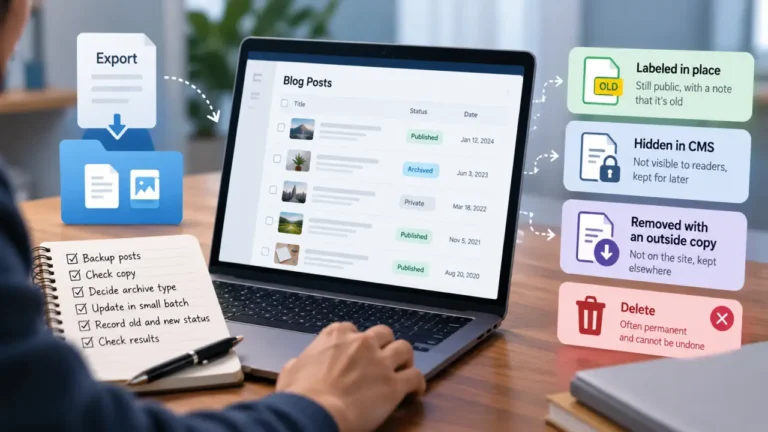
- Mark deletion candidates instead of deleting them. Move them to a folder or tag named for review, with the date you marked them.
- Wait, then check each candidate. Search your posts for the filename, check templates and newsletters, and only then delete, in small batches.
Why “unused” is a dangerous word in your media library
This is where cleanups go wrong. A library’s idea of where a file is used is usually incomplete. Filters that separate attached from unattached files, like the Unattached view in WordPress’s documentation, tell you whether a file is linked to a post record. They do not tell you whether the file appears on a live page.
A file can be in use without the library knowing, for example:
- In a theme, template or site header, such as a logo or background image
- In newsletters already sent, which may load images from your site when opened
- In social preview cards for posts shared months ago
- In PDFs, slide decks or other sites that link straight to the file’s address
- In posts where the image was inserted by address rather than through the library
Deletion can also be final. WordPress’s Media Library documentation describes the deletion action for media as Delete Permanently, with no trash step described. On any platform, check whether deleted media goes to a trash first, and assume it does not until you have confirmed it.
That is why the cleanup above ends with a copy, a waiting period and a filename search, in that order. Some platforms also store files used by add-ons, forms or galleries outside the main library, so check before assuming the library is the whole picture.
Media and migrations
A library is tested hardest when you move platforms. Images can go missing or break in a migration, and a library full of meaningful filenames is far easier to verify afterward than one full of camera defaults. If a move is anywhere on your horizon, the guide to checking for images broken after a CMS migration shows what to look for, and every rule above makes that check faster.
Frequently asked questions
Should I use folders or tags to organize a media library?
Use whichever your platform supports well, and use them for different jobs. Folders suit ownership and lifecycle, such as a year or a client. Tags suit topics and people. Whatever you choose, descriptive filenames matter most, because search works on almost every platform.
How should I name image files for a website?
Use lowercase words separated by hyphens that say what the image shows, plus a date for screenshots. For example, cms-migration-export-settings-screenshot-2026-09.png instead of IMG_0423.png. Rename files before uploading them.
Is it safe to delete unattached or unused media?
Not without checks. A file can be used in a theme, a newsletter, a social preview or another site without the library knowing. Copy the files first, mark candidates for review, search your posts for each filename, and delete in small batches after a waiting period.
How do I find duplicate images in a media library?
Sort the library by name or file size, which tends to put copies next to each other, and search for common names such as logo or headshot. Before removing a duplicate, update every post that uses it.